PC and Web
Keyboard and mouse, straight in the browser or with the Windows application.
Museums, schools, labs, events: VECOS brings everyone into the same virtual space, whether on a PC, in a browser, on a phone or in a VR headset.
Download the application for your device, or open it straight in your browser. No account is needed to download.
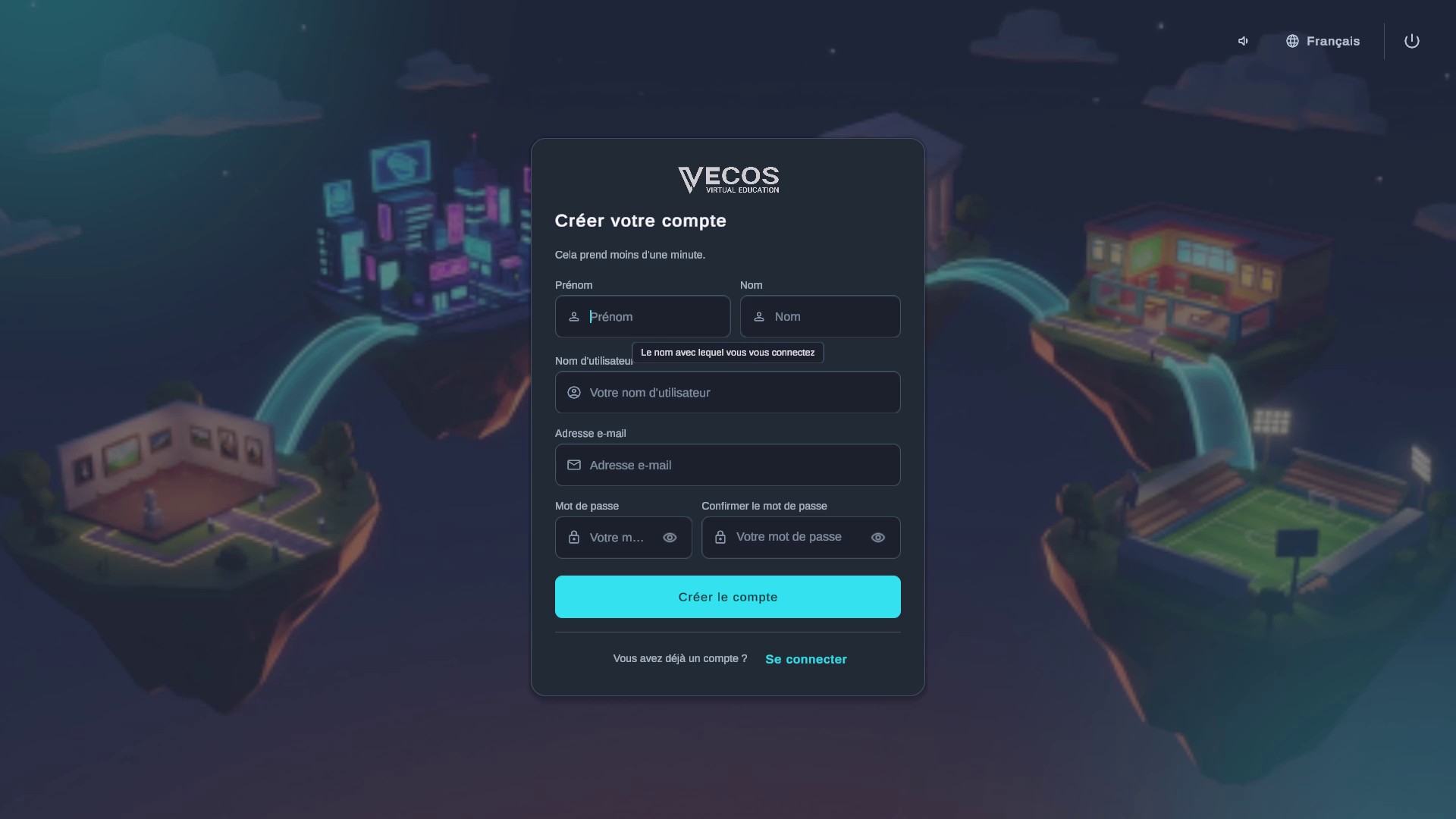
A simple form, then a confirmation e-mail. You will find your spaces again on all your devices.
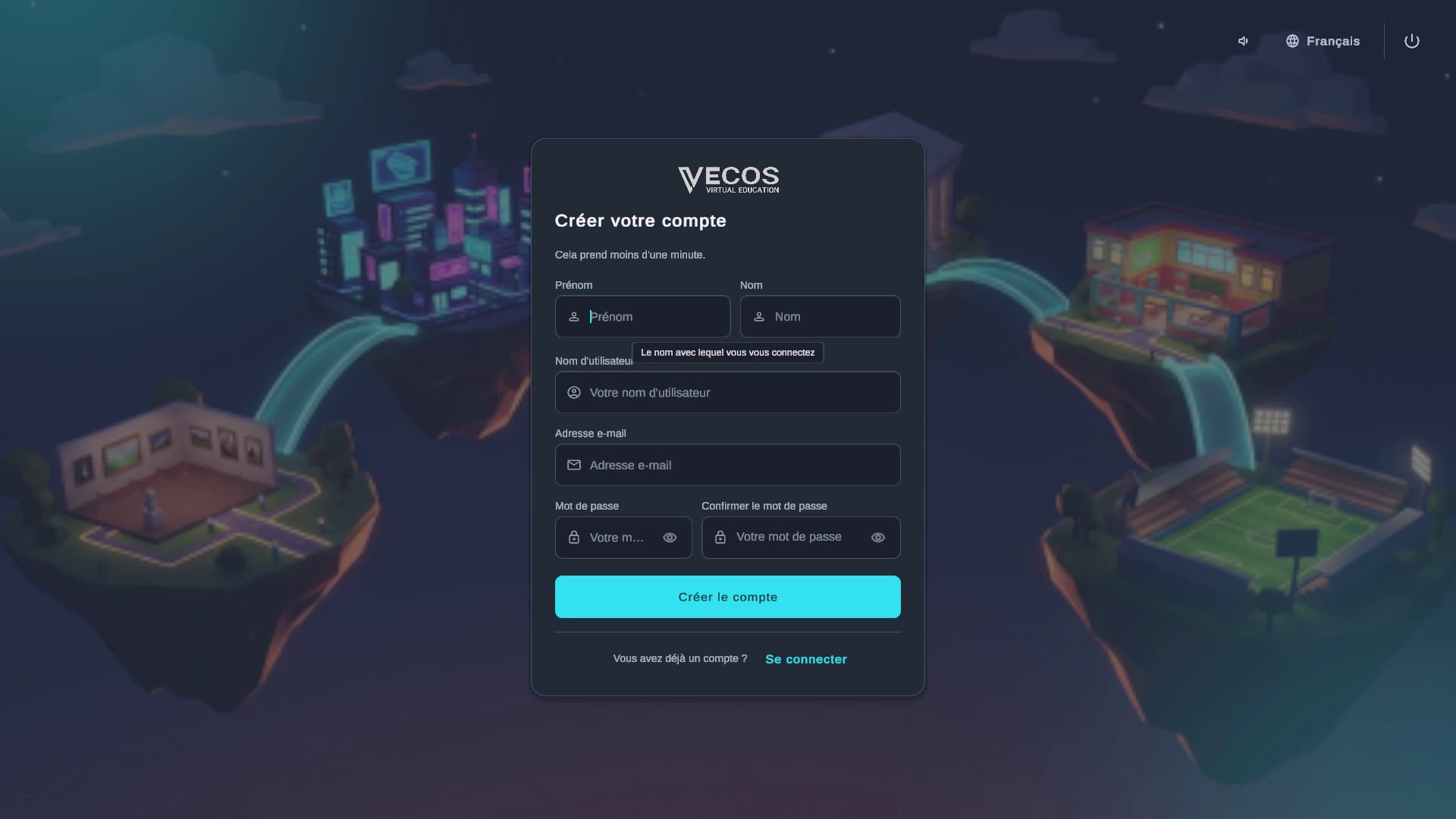
Browse the community's spaces, join one, or create your own and invite other people.
Same spaces, same accounts, same interface: join the same room from a PC, a browser, a phone or a VR headset, and everyone sees and hears each other.
Keyboard and mouse, straight in the browser or with the Windows application.
The touch screen to visit, chat and take part.
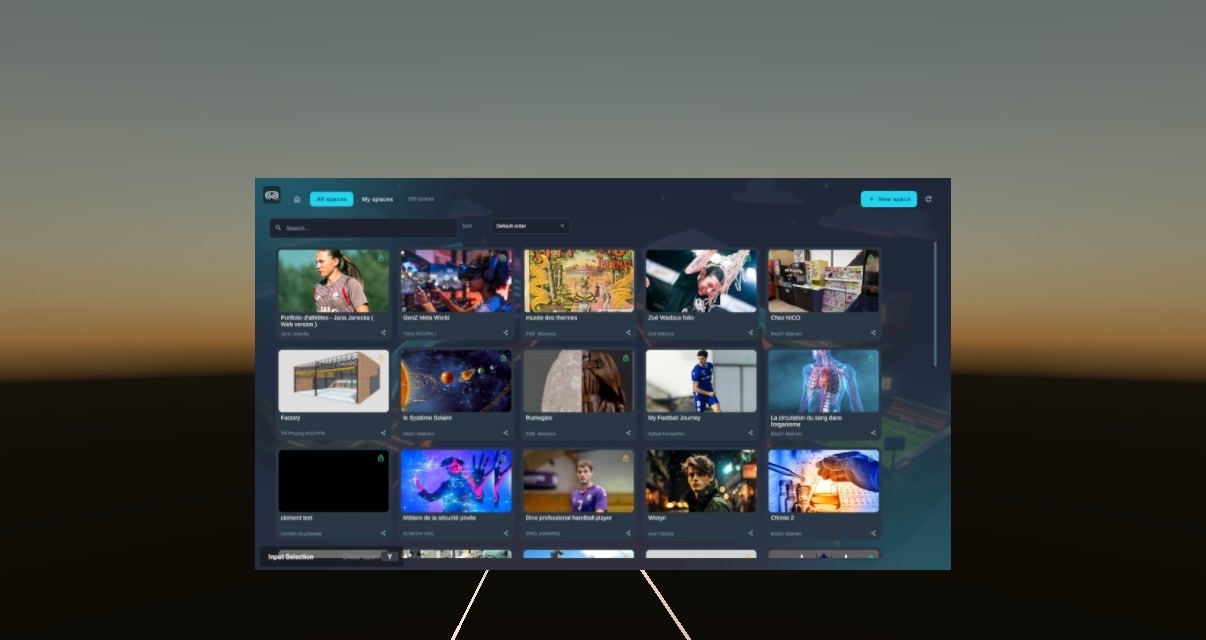
An immersive experience designed for controllers and virtual reality.
Choose your platform. No account is needed to download.
The computer application, designed to create and visit spaces.
Find your spaces on your phone or tablet.



Explore worlds to understand: guided tours, media, quizzes and resources right inside the space.

Practise in realistic situations, alone or in a group, with interactive scenarios and results to follow.

Create your own 3D spaces, open them to others and meet there to exchange.
Lessons, practical work and visits, in class or remotely.
Exhibitions open to everyone, at any hour, from anywhere.
Hands-on scenarios and shared training paths.
Meetings and presentations in a shared virtual venue.
The list loads as you scroll and shows the total number of spaces.
Play, pause, volume, and a choice of who sees the movie: just me, those present, or everyone, in sync.
Move, rotate and resize objects with a precise manipulator.
Block library, drag and drop, nesting, play and stop.
A warm lounge with a library, a museum and a classroom welcomes the visitor.
See each other, talk, write: together, whatever the device.
No. Downloading is public. An account is needed to log in and to create or join spaces.
On PC, in a web browser, on mobile and in a virtual reality headset. It is the same application, with the same spaces and the same accounts.
Yes. The 3D editor and VECOS Flow let you build a space and make it interactive without writing any code.
The Features page presents all 119 features by area, with how they are used on each device.
Through the form on the Contact page, or by e-mail at contact@vecos.us.
Create your account in a few moments, or log in to find your spaces.